SA SEO JSON‑LD Schema markup FAQ
1. Why SA SEO JSON‑LD Schema markup needs to be installed in my store?
Schema markup allows you to improve the appearance of your product in Google search results. It allows you to add price, image, reviews, and other information to search results.
Schema markup also adds information about your site to Google, such as site name, URL, and description. With SA SEO JSON‑LD Schema markup, you can add a search snippet, breadcrumb list, articles schema, etc.
2. What type of Schema can I add to the store using the app?
This app adds Schema markup for products, product collections, blogs, articles, and pages. You can add the following schema fields for products:
Name (always included)
Image (always included)
Description (always included)
SKU (always included)
Barcode
Brand name
Review apps integration
Color, Size, Material (English language, only for the Pro Plan subscribers)
URL (always included)
Price (always included)
Price currency (always included)
Availability (always included)
Item Condition (always included, always NewCondition)
Shipping Details (Rate and Destination).
Shipping Details (Transit Time and Delivery Time, only for the Pro Plan subscribers),
Return Policy schema (only for the Extended or Pro Plan subscribers).
If the product has variants, the Schema markup will not be added for the variant that is not available.
You can add the following schema fields for pages:
Site name (always included)
Site URL (always included)
Site description (always included)
Page name (always included)
Page URL (always included)
Page description (always included)
Organization
Local Business
Breadcrumb list
Search
FAQ Page: Questions and answers
Video schema (only for the Extended or Pro Plan subscribers)
Contact Points.
3. How to add Schema to my store?
First of all, you need to install the app from Shopify App Store. Just click the “Add app” button:
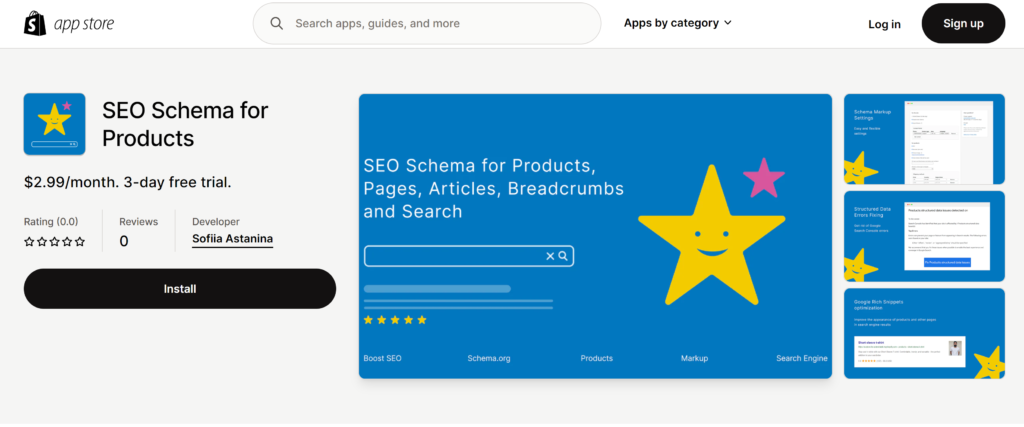
Open the App and activate it according to the instructions:

After that, you need to configure the Schema options. Check and fill in the necessary options:

Click the “Save” button after that.
Product name, description, image, price, URL, availability, and condition will always be included in the Schema. If you don’t check/fill in any of the options, but click the “Save” button, these fields will still be included.
Site name, site URL, site description, page name, page URL, and page description will always be included in the Schema. If you don’t check/fill in any of the options, but click the “Save” button, these fields will still be included.
Note: If you want to check the SKU or Barcodes option, these fields are needed to be filled in your product.
Note: If the “Input your Brand name” is filled, the Brand name will be added using this field regardless of whether the “Include Brand” checkbox is checked or unchecked.
4. How to add Shipping Methods to my Schema?
If you want to add extra information to your Schema, such as Shipping methods, you can add it in this section:

Use the following format:

Here are the format requirements:
Use only numbers for Price;
Use the following format for Country and Region/State:
US, UK, KZ (country codes separated by comma).
5. How to remove the Schema from the store?
The Schema will be removed automatically when the App is uninstalled. You can deactivate the Schema code without uninstallation in your theme settings:

6. How to uninstall the app?
You can uninstall the app in the Shopify Settings section as usual.
7. Will this app slow down my store?
Using the app will not affect the site speed and Google Page Speed results.
8. How long does it take to see any change made with the app shown on Google search results?
The changes may take from a few days to a few weeks. This happens because Google bots need time to index a new site or page changes.
9. How to check if the Schema is added to the store?
You can check the result using this service: https://validator.schema.org/
Just paste your product URL and click “RUN TEST”!
10. Schema Validator throws errors or doesn’t show a Schema. What should I do?
In this case, you can try to regenerate the Schema by clicking on the “Save options” button. Also, other apps or theme settings may cause Schema errors. Anyway, feel free to send us a message if you need help or advice: support@get-great.site (We will reply in 1-2 business days).
11. Schema Validator shows several variants of Schemes. Why is this happening?
In this case, other Schemes may be added by the theme or other SEO apps you use. This usually does not worsen the site’s SEO.
12. Why are some elements of my schema not showing up in Google rich snippets?
Google may exclude some schema elements in rich snippets to maintain fairness and diverse search results, avoiding favoritism towards specific websites.
Read more: Product image recommendations
13. What do I need to do when changing themes?
You need to activate the app in your theme settings:

14. Do I need a manual installation of the app?
Schema installs automatically no coding is needed. Anyway, if you need help, send us a message: support@get-great.site (We will reply in 1-2 business days).
15. Which review apps does this app support?
This app is integrated with the following apps:
Ali reviews
Judge.me
Lai
Loox
Okendo
Opinew
Rivyo Product Reviews
Ryviu
Stamped.io
We are working on adding more integrations with reviews apps.
Please note that if you want to integrate this app with a reviews app from the list, you need to install the chosen reviews app.
16. How can I contact the app developer?
For all questions, write an email to support@get-great.site (We will reply in 1-2 business days). We are happy to hear from you!
Please note: If you are contacting technical support about an error, indicate the approximate time of the error.
