Elegant Preloader FAQ
1. Why does Elegant Preloader need to be installed in my Store?
Elegant Preloader adds a beautiful loading screen to your site. While your site is loading, a user will enjoy satisfying loading animation. The App is also useful if your site doesn’t look good while loading. In this case, the App allows hiding the site display imperfections.
2. How to install and configure the App?
- Click “Open app” on our page in Shopify App Store: Link
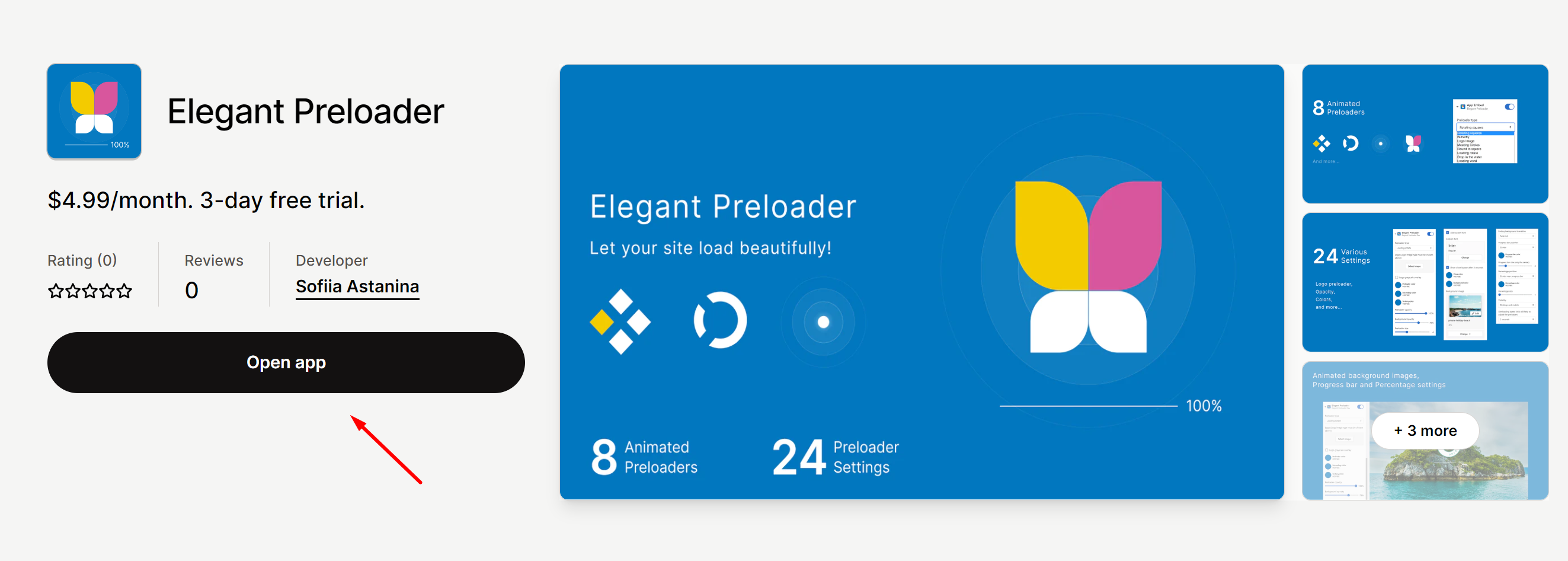
- Choose your store and follow further instructions
- When the App is installed, preview and activate the App in the active theme or choose another theme:

- Experiment with settings, click “Save” and enjoy your preloader!

3. What options the App has?
The App has a flexible constructor for creating a unique set of 24 options for your site preloader:

Preloader type. Choose from 8 animated preloaders.
Logo. Add a logo instead of an animated preloader. The preloader type must be the “Logo Image”.
Logo grayscale overlay. Add a grayscale animation to your logo. The preloader type must be the “Logo Image”.
Preloader color. Choose the main color for your preloader*.
Secondary color. Choose an additional color for your preloader*.
Tertiary color. Choose an additional color for your preloader*.
Preloader opacity. Set the animated preloader opacity.
Background opacity. Set the background opacity.
Preloader size. Choose your preloader’s preferred size, from tiny to large.
Use custom font. Choose the font for some kinds of preloaders and progress percentage*.
Custom font. Works only if “Use custom font” is activated.
Show close button after 3 seconds. This option is useful if you want to allow your users to close the preloader before all the content is loaded.
Close button color*.
Background color*.
Background image. Set a background image instead of plain color.
Ending background transition. Choose the animation of closing the preloader.
Progress bar position. Add a progress bar animation and choose the progress bar position.
Progress bar color*.
Progress bar size. This option works only if the progress bar position is set to center.
Percentage position. Add an interactive counter for loading. May be center, top, or bottom. The option “Center near progress bar” works only if the progress bar is centered.
Percentage color*.
Percentage size.
Visibility. Display the preloader on desktop, mobile, or both.
Site loading speed. Set the approximate speed of your site loading so that the preloader animations will be adjusted carefully.
Note: Preloaders load for 4 seconds in the theme editor preview.
*The default value is inherited from your theme color schema.
4. What image formats and sizes do I need to use?
Logo images:
Use JPG, PNG, GIF, or WEBP formats, at least 512 px of width.
Background image:
Use JPG or WEBP formats, at least 1920 px of width.
Images sizes may impact the site speed, don’t upload extremely large images (more than 1MB). Compress images if it is possible.
5. Do preloaders work well in all browsers?
We will make every effort to provide quality services, however, some old browsers may display the preloader incorrectly. The App doesn’t support Internet Explorer, which is not supported by Shopify, and will be shut down in Windows 10 on February 14, 2023.
We disclaim all warranties about the display of preloaders and other App functionality in your store.
6. I changed a preloader color but can’t see the changes. Why does this happen?
Some preloaders can have only two or one color option. For example, Meeting circles can have only two colors, and Loading word can have only one color.
7. How to uninstall the App?
The app is uninstalled the same way as all Shopify apps:
Click Settings – Apps and sales channels – Choose the App and click “Remove”:

No extra actions are needed, all files will be removed automatically.
8. Will this app slow down my store?
The App doesn’t affect site loading speed by more than 2 points. Only your background or logo image can affect site loading speed.
9. What do I need to do when changing themes?
After changing a theme you need to reactivate and reconfigure the App.
- Activate the App embedded block in the Theme editor:

- Click the arrow to see all options:

- Configure the options and Save changes:

10. Do I need a manual installation of the App?
The App installs automatically if you follow the instructions and no coding actions are needed. Anyway, our support is happy to help you to install and configure the App.
11. How can I contact the App developer?
For all questions, write an email to support@get-great.site. We are happy to hear from you!
Please note: If you are contacting technical support about an error, indicate the approximate time of the error.
12. When I select a background image from the Shopify library, I see the error “Setting ‘bg_image_src’ does not point to an applicable resource”. What should I do?
- Despite the fact that the error is shown, choose an image and click “Select”;
- Click “Save” on the top right;
- Reload the page, and after that, the image will appear as a background.
